How to Report Phishing Emails in Outlook
Learn how to identify and report phishing emails in Outlook with this easy guide. Protect your organization from cyber threats by recognizing suspicious emails, using built-in reporting tools, and blocking malicious senders effectively to enhance your email security.

On this page 6 sections
Did you know that phishing emails account for over 80% of reported security incidents globally? In 2023, Americans lost over $12.5 billion to internet crimes, with phishing being the most reported type of cyberattack, accounting for 880,418 complaints, according to the FBI's Internet Crime Complaint Center (IC3). Learn more: What Is Phishing How To Protect Yourself From It.
These figures reveal how phishing is rapidly becoming a more dangerous and sophisticated threat each year. Cybercriminals use fake emails to trick people into sharing sensitive information or clicking malicious links. For businesses using tools like Microsoft Outlook, even one missed phishing email can lead to serious financial losses, legal trouble, and a damaged reputation.
In this blog, we’ll explain how to spot, report, and block phishing emails in Microsoft Outlook so you can protect your team and your organization.
What Is Phishing in Outlook?
Phishing emails mimic legitimate communication to deceive users into revealing sensitive information or installing malicious software. Common phishing tactics in Outlook include:
- Impersonation Emails: Pretending to be from a trusted organization, such as Microsoft or a bank.
- Credential Harvesting: Directing users to fake login pages to steal credentials.
- Malware Links or Attachments: Embedding malicious content disguised as invoices or reports.
Why Reporting Phishing Emails Is Crucial
Reporting phishing emails is essential for:
- Protecting Your Organization: Stops attackers before they exploit your network.
- Improving Email Filters: Helps Outlook enhance its phishing detection capabilities.
- Preventing Legal or Financial Risks: Reduces exposure to penalties caused by breaches.
Phishing Simulator
Multi-channel phishing simulations, not email-only
Run realistic simulations by email, SMS, call and QR code, and see reporting behaviour change over time.
How to Report Phishing Emails in Outlook
Reporting phishing emails in Outlook is a simple yet powerful way to protect yourself and your organization from cyber threats. By flagging suspicious messages, you help improve email filters and prevent future attacks. Here’s a step-by-step guide to recognizing, reporting, and blocking phishing attempts in Outlook.
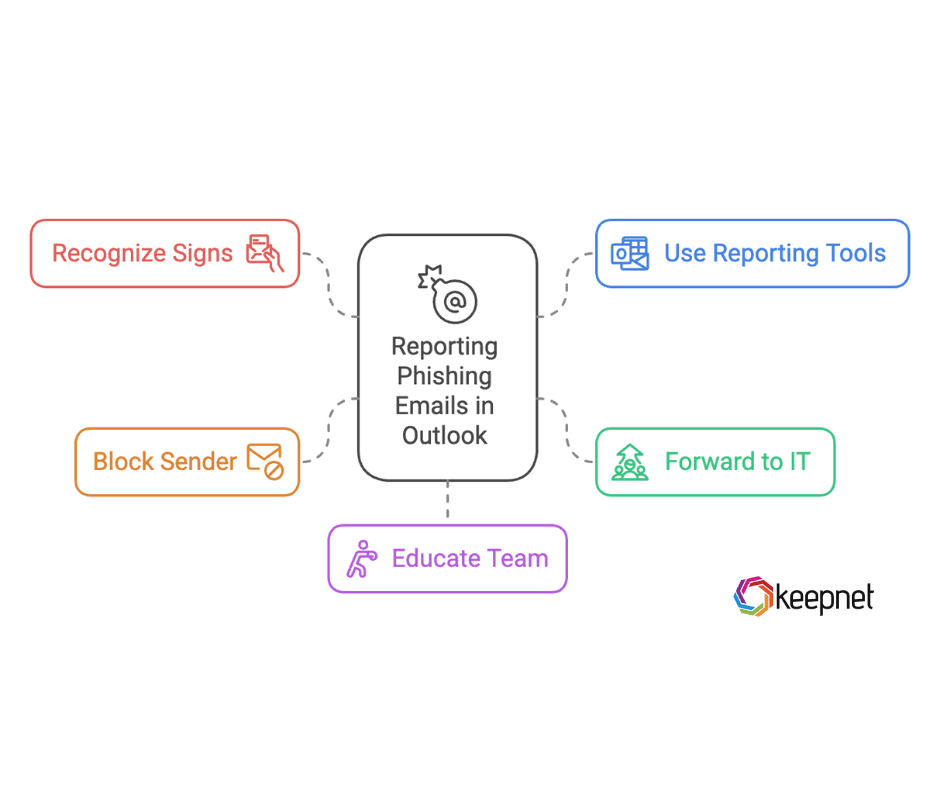
Step 1: Recognize the Signs of a Phishing Email
Before reporting, ensure the email is truly suspicious. Common signs include:
- Unexpected Sender: Emails from unknown contacts or unusual domains.
- Urgent Language: Messages urging immediate action, such as “Verify your account now.”
- Inconsistent Formatting: Misspelled words or poorly designed templates.
For more tips on identifying phishing emails, refer to our guide on cybersecurity training for employees.
Step 2: Use the Built-in Phishing Reporting Tool in Outlook
Microsoft Outlook offers tools to report phishing emails directly:
Desktop App:
- Open the phishing email without clicking any links or attachments.
- Click on the Report Message button in the ribbon.
- Select Phishing from the dropdown.
Outlook Web Version:
- Select the suspicious email.
- Click on the three dots (More Actions) in the toolbar.
- Choose Report Phishing.
Outlook Mobile App:
- Long-press the email to select it.
- Tap the More Actions menu (three dots).
- Choose Report Phishing.
Step 3: Forward to Your IT Team or Security Provider
If your organization uses tools like the Keepnet Incident Responder, forward the email to your IT team. They can analyze the email and take further action to mitigate risks.
Step 4: Block the Sender
To prevent future phishing attempts:
- Right-click the suspicious email.
- Select Junk > Block Sender.
This action stops similar emails from reaching your inbox and helps Microsoft improve its spam filters.
Step 5: Educate Your Team
Empowering employees with training is the best defense against phishing attacks. Explore Keepnet Phishing Simulator to practice identifying threats in a controlled environment.
Best Practices for Preventing Phishing in Outlook
Preventing phishing attacks in Outlook requires a proactive approach that combines technology, training, and regular monitoring. These targeted strategies can help protect your organization from common phishing tactics:
- Enable Multi-Factor Authentication (MFA): Adding an extra layer of security can prevent attackers from exploiting stolen credentials.
- Regular Security Awareness Training: Stay ahead of evolving tactics with security awareness training.
- Utilize Anti-Phishing Tools: Implement tools like the Incident Responder to automate threat mitigation.
- Review Suspicious Activity Reports: Regularly monitor user activity and flagged emails for potential breaches.
How Keepnet Tools Help Combat Phishing
Keepnet offers powerful tools to protect against phishing and other email threats:
- Phishing Simulator: Test and train employees with realistic phishing simulations to build awareness and reduce risks.
- Incident Responder: Automate the analysis, reporting, and removal of phishing emails to mitigate threats quickly.
- secure behaviour management platform: Monitor employee behavior, assess vulnerabilities, and track improvements with risk scoring tools.
Keepnet ensures your organization is equipped to identify, report, and respond to phishing threats efficiently.

Frequently asked questions
Select the message, use the built-in reporting option in the ribbon or the Report button your organisation has deployed, then confirm. The report goes to Microsoft and to your security team at the same time.
It sits in the ribbon on the Home tab in the desktop app, and in the toolbar above the message in Outlook on the web. If an organisation deploys its own reporting add-in, that button replaces the default and routes reports internally.
Forward the message to your IT or security team as an attachment so the headers survive, then delete it. Forwarding it in the body strips the technical detail investigators need.
Blocking helps with repeat nuisance mail, but it does nothing for colleagues who received the same message. Reporting first is what allows the security team to find and remove every copy.
A display name that does not match the actual address, urgency about payment or access, unexpected attachments, links that resolve to an unfamiliar domain, and requests to move the conversation to a phone or a personal channel.
A deleted message still sits in other inboxes. Reporting turns one alert person into a detection signal for the whole organisation, and time to report is what decides whether a phishing email becomes an incident.
Schedule your 30-minute demo now
You'll learn how to:
- Use Keepnet’s Phishing Simulator to train employees to identify and report phishing emails effectively.
- Automate email analysis and response with Keepnet’s Incident Responder to reduce the impact of attacks.
- Track user performance with Keepnet’s Extended Human Risk Management Platform and Secure Behavior Management to benchmark and improve phishing awareness.
30 minutes with a Keepnet specialist, on your own use cases.

Author
Ozan Ucar
Founder and CEO, Keepnet
Ozan founded Keepnet in 2017 and has worked in cyber security since 2006. He leads Keepnet's product direction and works with security teams on measuring and changing the behaviours behind incidents.